
How to set up your overlays in OBS / TikTok Live Studio
A quick note about the overlays
When you use TikPlay overlays, keep the TikPlay tab open the whole time. It doesn't matter where you are on TikPlay, in a game or on your profile, as long as the page stays open. If you close it, your connection drops and the overlays stop working.
How overlays work and how to set them up
Every overlay has its own link that you add to OBS, TikTok Live Studio, or any streaming software. The steps are the same for every overlay, so we'll use the Game Interactions overlay as our example.
1. Open the Overlays page
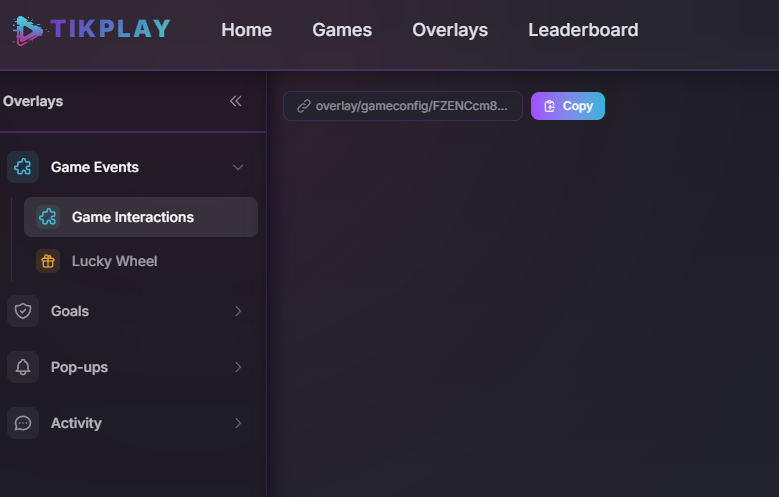
Click "Overlays" in the top navigation to open the overlay area.
2. Copy the link
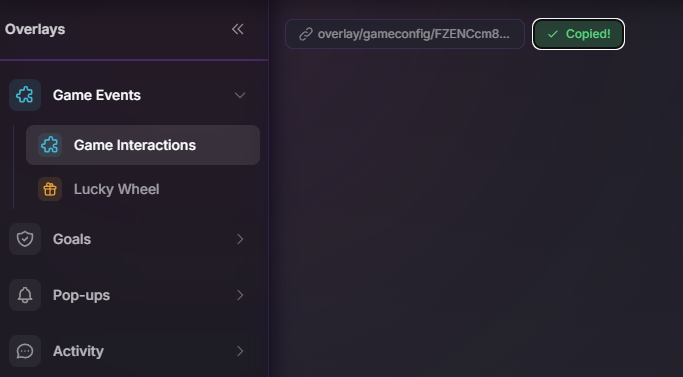
Click the copy button to copy the overlay link.
3. Add it in your streaming software
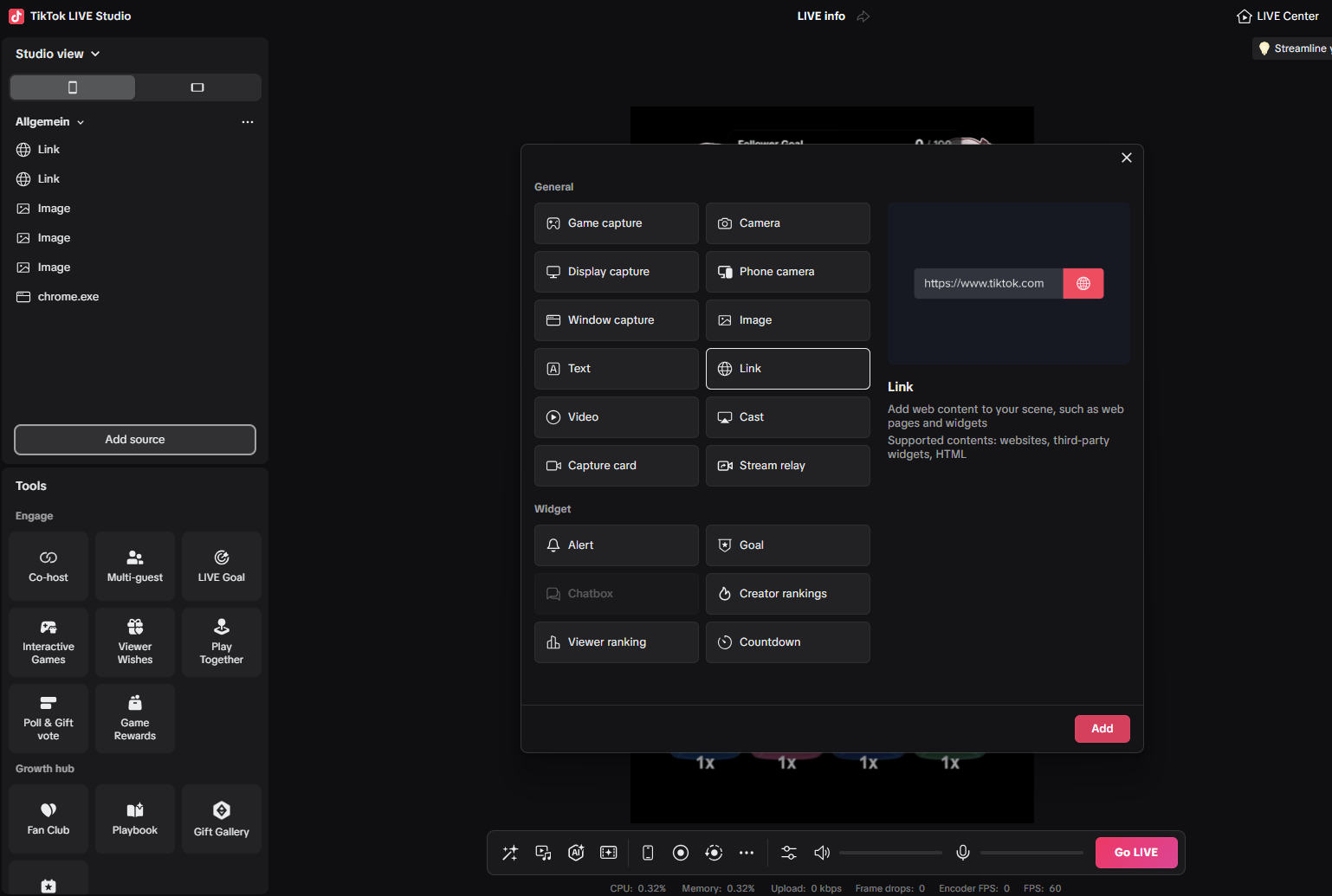
In your streaming software (here it's "TikTok Live Studio"), click "Add Source" and choose "Link / Browser".
4. Paste the link
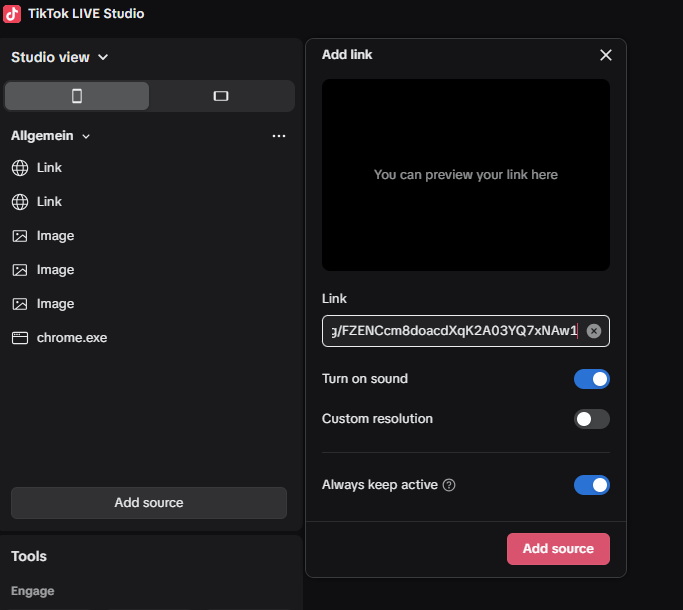
Paste the copied link into the field and add it.
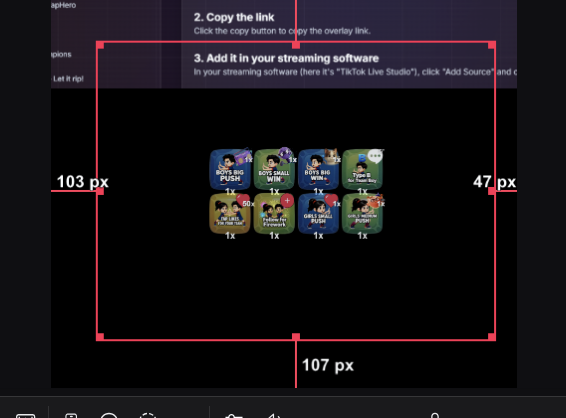
5. Resize and position it
Now resize the overlay and move it where you want it. That's it!
Switching games
When you switch games, the overlay updates automatically to your latest game, so you never have to add the link again.
Adding more overlays
To add another overlay, do the exact same thing: copy its link and add it again through "Link / Browser". Every overlay works the same way.
What else we offer
Our overlays include Game Interactions, a Lucky Wheel (use it on its own or link it to a game), Like, Follower, Share and Gift Goals, pop-up alerts for new followers and gifters, a Top Gifter display, a Comment Feed, and TTS that reads your chat out loud.
That's it - you now know how to use your TikPlay overlays!